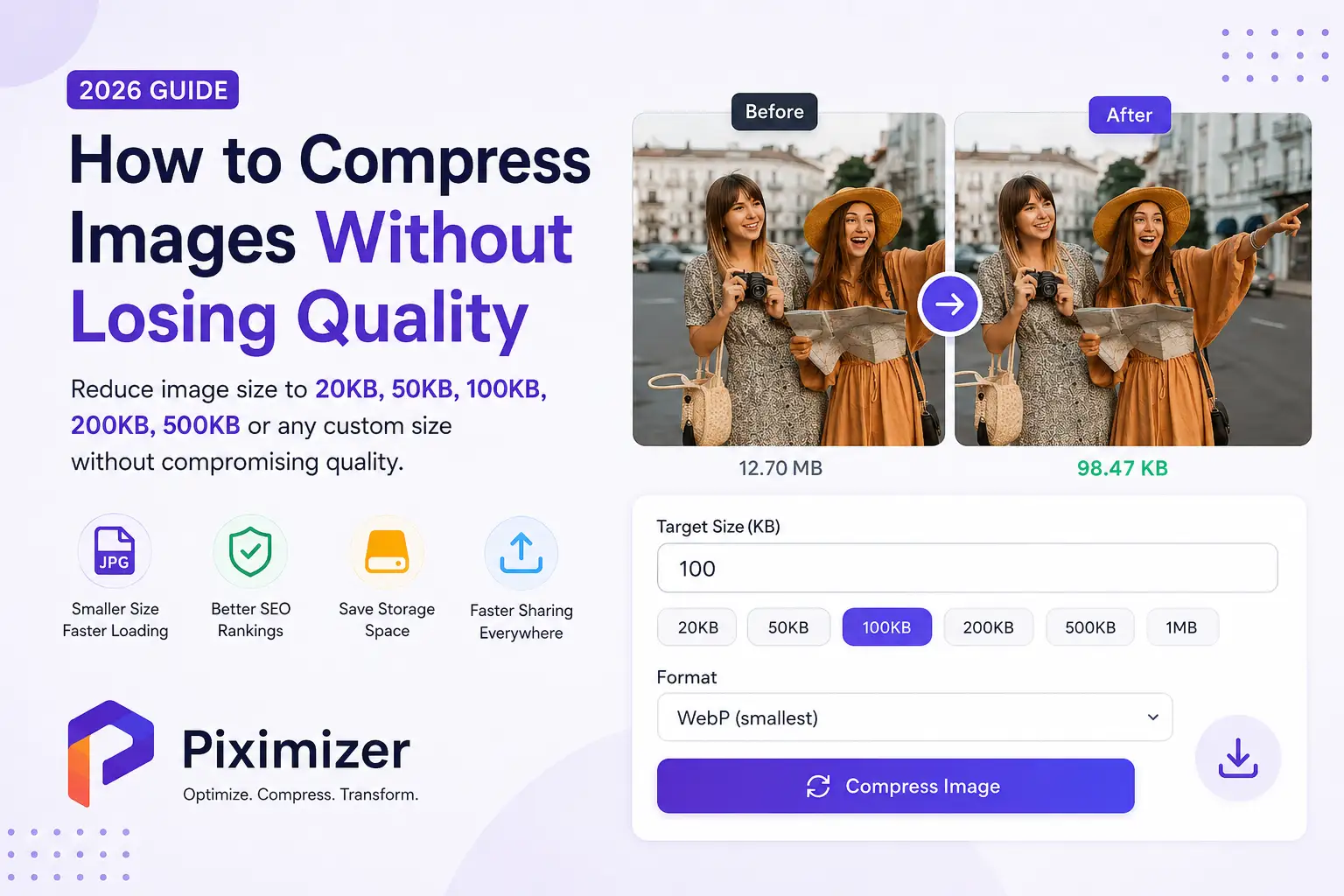

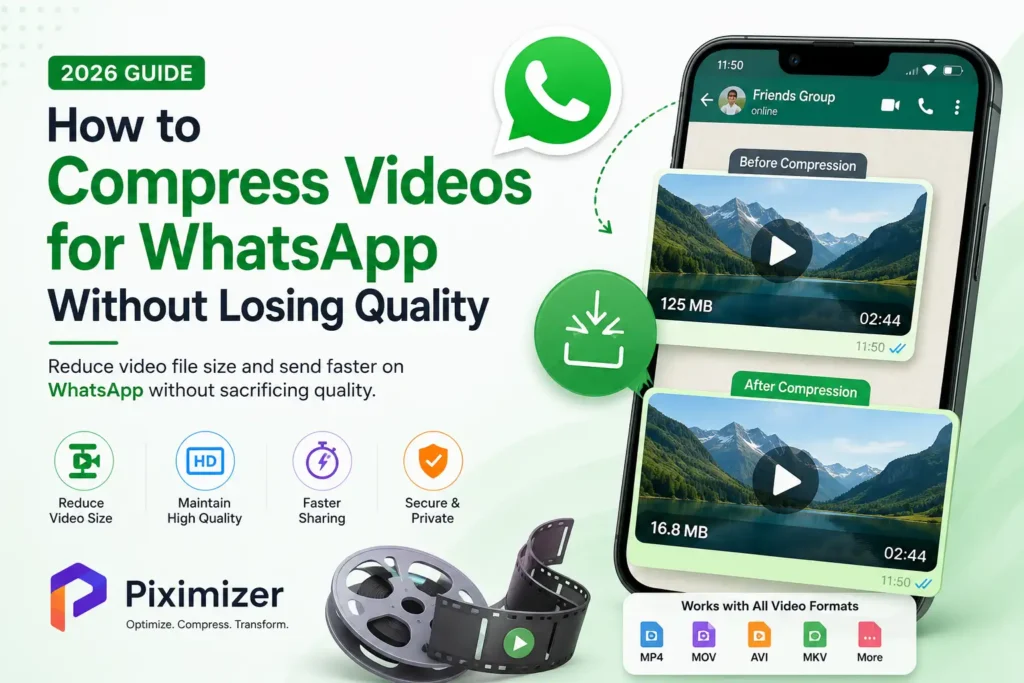
You’ve probably had this happen: you send a video on WhatsApp, and what your friend or client receives looks noticeably worse than what you recorded — blurry, blocky, and washed out. That’s not your imagination. WhatsApp automatically compresses every video you send, using its own settings, whether you like it or not. The only way to stay in control of how your video looks is to compress it yourself, correctly, before you send it.
Here’s exactly how to do that.
WhatsApp’s Actual Video Limits (2026)
Before compressing anything, it helps to know what you’re actually working with:
- 16MB is the practical limit for videos sent as regular media in individual chats, group chats, and Status updates. WhatsApp will block anything larger from sending as an inline video.
- WhatsApp Status videos are capped at 30 seconds per clip, regardless of file size.
- Sending as a “document” instead of a media attachment bypasses the 16MB limit (documents allow much larger files), but the recipient loses the inline video player and instead sees a download link.
- For context: one minute of uncompressed 4K footage from a modern phone is roughly 400MB, and even a 60-second 1080p clip can land between 150–250MB depending on how much motion and detail is in the frame. That gap is exactly why compression is necessary, not optional.
Why WhatsApp’s Own Compression Looks Bad
When you send a video directly in a chat, WhatsApp compresses it automatically to cut server load and save the recipient’s mobile data — even if your video is already under the 16MB limit. This automatic pass is tuned for file size, not visual quality, which is why colors flatten, fine detail smears, and on-screen text can become unreadable. Compressing the video yourself, with settings tuned for quality retention, avoids a second round of aggressive compression on top of your own.
The Settings That Actually Keep Quality Intact
If you’re compressing manually or just want to understand what a good compressor is doing under the hood, the combination that reliably produces a file under 16MB that still looks sharp on a phone screen is:
- Codec: H.264 (universally supported, efficient, the WhatsApp standard)
- Resolution: 720p for clips under roughly 90 seconds (dropping from 1080p to 720p is the single biggest, least-noticeable size reduction on a phone screen)
- Bitrate: 1000–1500 kbps for short clips (under 90 seconds); closer to 800 kbps for longer 2–3 minute clips
- Container: MP4
At roughly 1500 kbps total bitrate, a 60-second video typically lands around 12–13MB — comfortably under WhatsApp’s 16MB ceiling, with no visible quality loss on a phone screen, which is where nearly all WhatsApp videos are actually watched.
Step-by-Step: Compress Your Video the Easy Way
1. Know your target. For a standard chat video, your target is under 16MB. For a Status update, keep it under 30 seconds as well.
2. Skip the manual settings if you don’t need them. Tools like Piximizer’s Video Compressor apply the resolution/bitrate balance above automatically, so you don’t have to calculate bitrate math by hand — just upload your MP4, MOV, AVI, or WebM file and let it optimize for size while preserving visual quality.
3. Upload and compress. Piximizer processes the file and reduces it to a WhatsApp-friendly size without the aggressive artifacting WhatsApp’s own compression introduces.
4. Download and send directly. Because the output is already under WhatsApp’s limit, it sends as a normal inline video — no document workaround needed, no second compression pass degrading it further.
5. For longer or higher-stakes videos (client work, professional footage), consider sending via the “document” option or a cloud link instead of compressing down from a long clip, since very long videos compressed to fit 16MB will show visible quality loss no matter which tool does the compressing — that’s a length problem, not a tool problem.
Final Tips to Compress Videos for WhatsApp
- WhatsApp’s media limit is 16MB for chats and Status; documents allow more but lose the inline player.
- WhatsApp automatically re-compresses anything you send, often degrading quality — compressing it yourself first keeps you in control.
- H.264 codec, 720p resolution, and 1000–1500 kbps bitrate is the sweet spot for short clips.
- Use Piximizer’s Video Compressor to do this automatically, free, with no software installation.